Digital out-of-home ad platform · 2023–24 · Web Design and SaaS
Line Item Flow
A concept that modernized how media buyers set up a digital out-of-home campaign, with the screens on a live map instead of in a list.
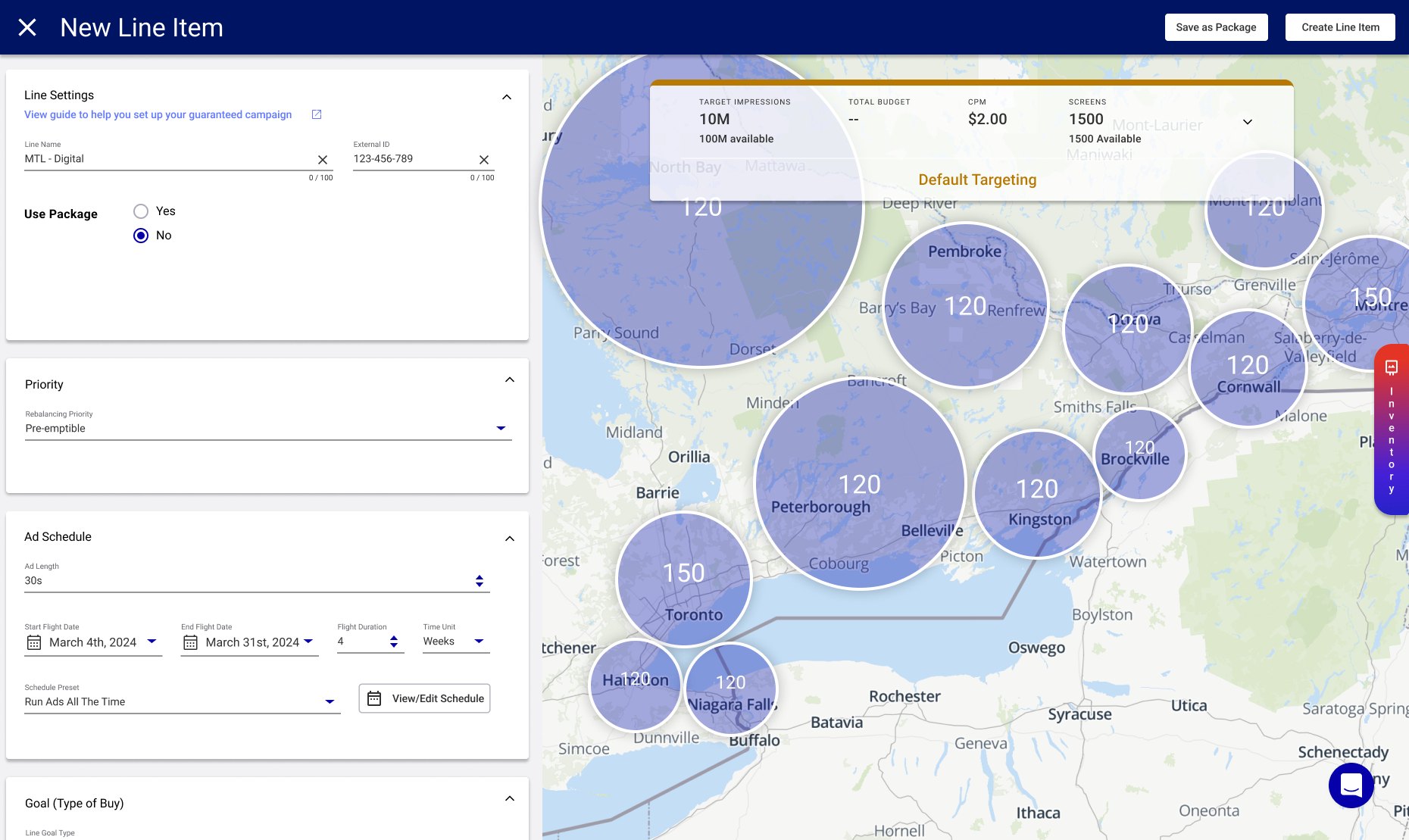
Digital out-of-home (DOOH) is advertising on screens in malls, transit, gas stations and city streets. The platform I worked on lets the companies that own those screen networks sell campaigns on them. A line item defines which screens a campaign will run on, the schedule, the number of impressions and the price. The existing line item flow was functional but clunky, and had weak mapping features. This affected how customers perceived the product compared to newer tools. To alleviate this problem I designed a concept to modernize the line item flow.
The Problem
The existing flow was functional. Everything a media buyer needed was there, but it was spread over long forms and lists of screen IDs.
A media buy is a decision about location. Buyers think in terms of cities, neighbourhoods and places, but the system presented the inventory as rows in a list. In addition customers judged the product by how it felt to use, and the line item flow felt dated.
The goal was to modernize the experience and how customers perceive it, without removing any existing functionality.
Design Proposal
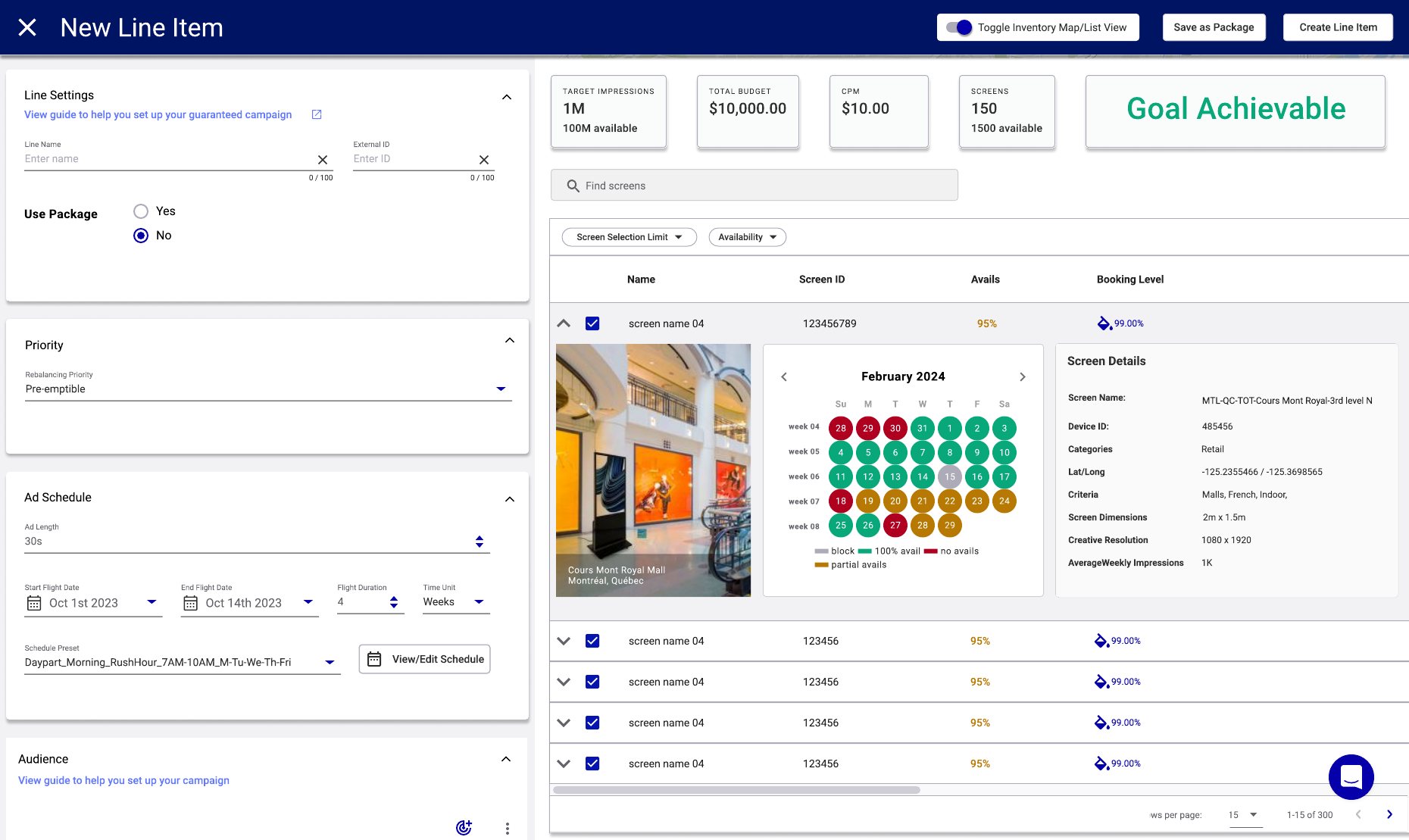
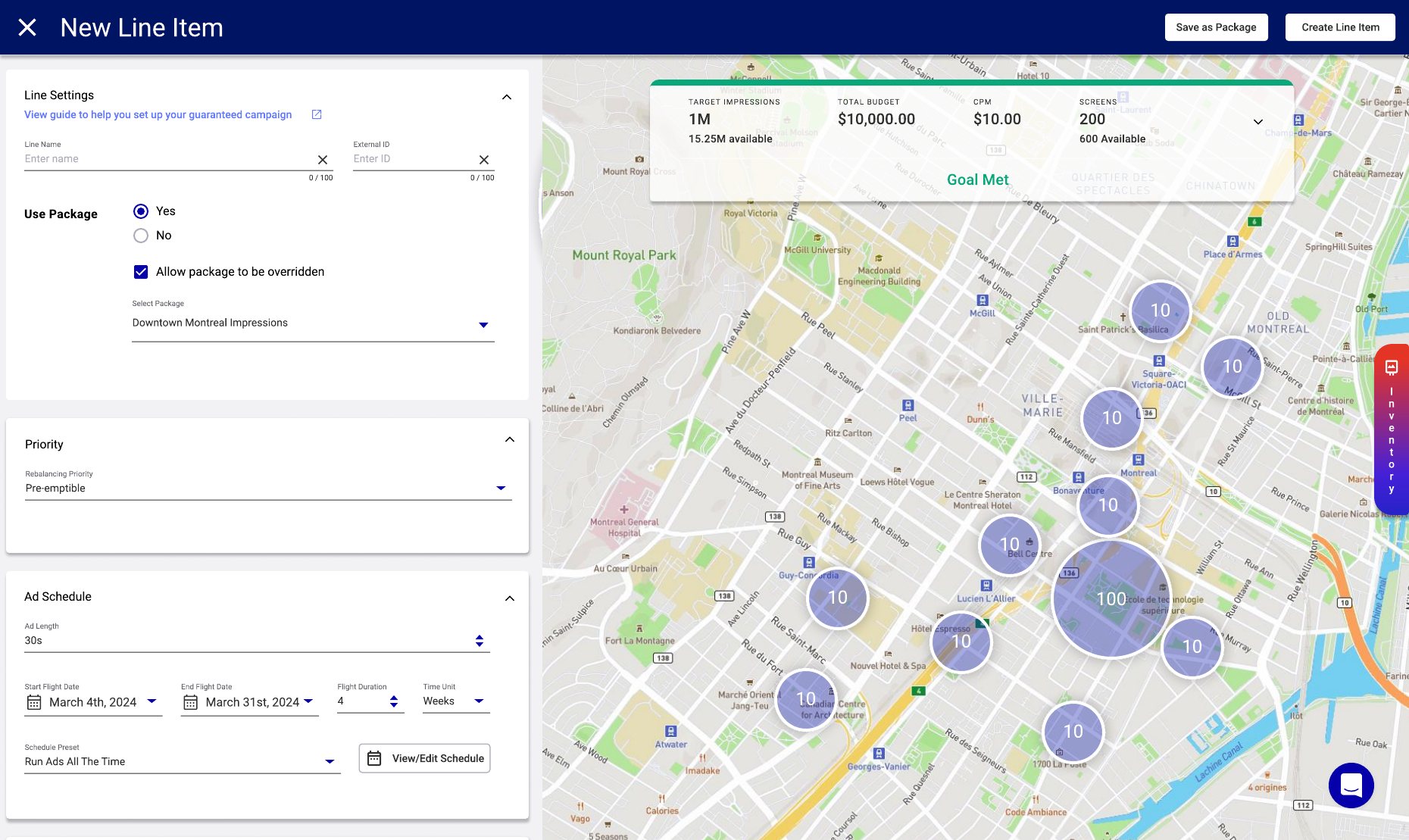
I designed the line item as a single screen. The settings are on the left in collapsible sections, in the order a buyer makes decisions:
- Line settings
- Priority
- Ad schedule
- The goal or type of buy
- The audience
The map on the right shows the inventory the line item will run on, clustered by area with a count of screens.
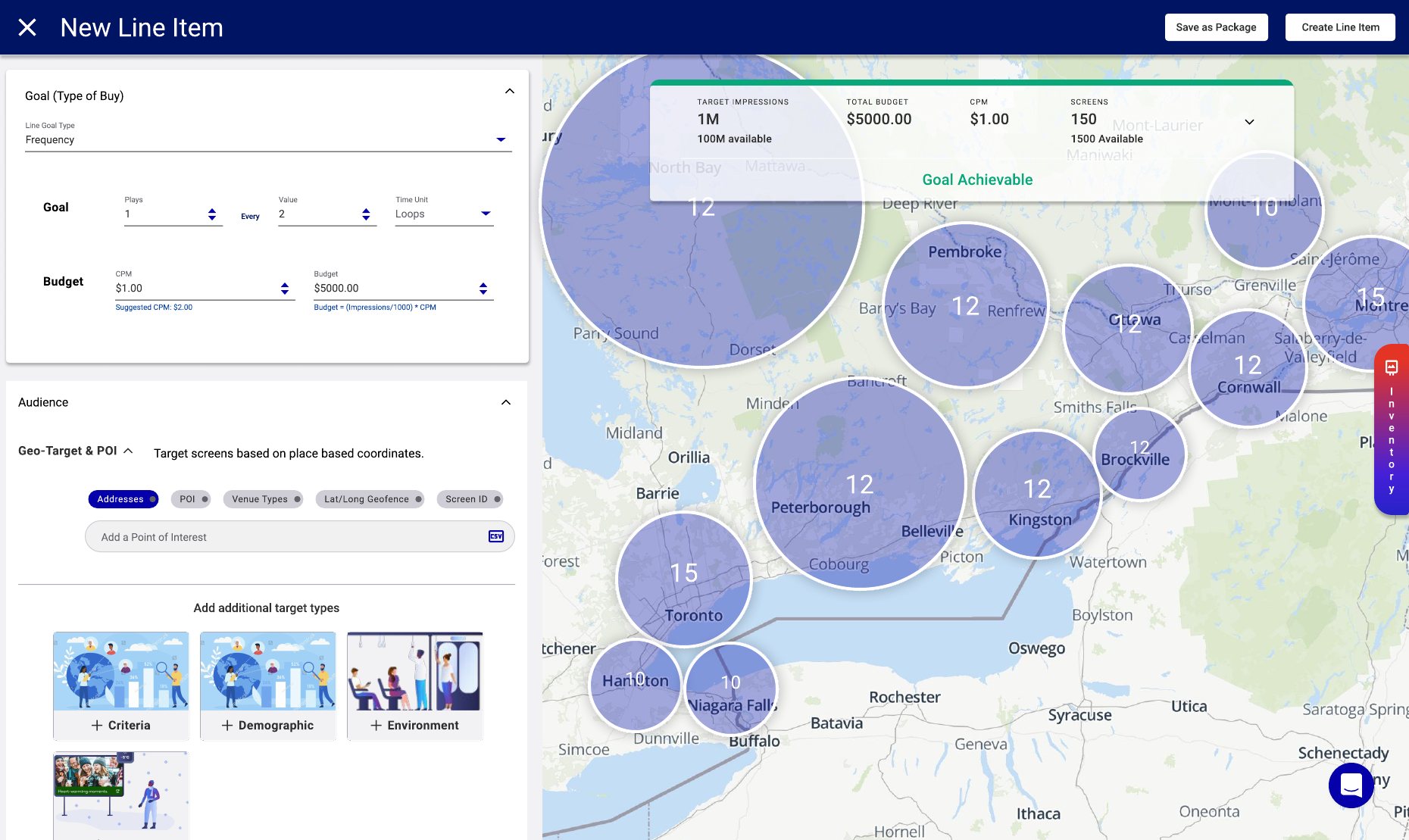
A heads-up display (HUD) sits across the top of the map. It provides the status of the line item at a glance. It shows the target impressions, total budget, CPM (cost per thousand impressions) and number of screens, each with the amount still available.
The HUD shows the default targeting until a change is made to the budget, audience or inventory. It then tracks the line item. As the goal parameters come together the status turns green, from “Goal Achievable” to “Goal Met”. The HUD can also be expanded to show more information.
Targeting
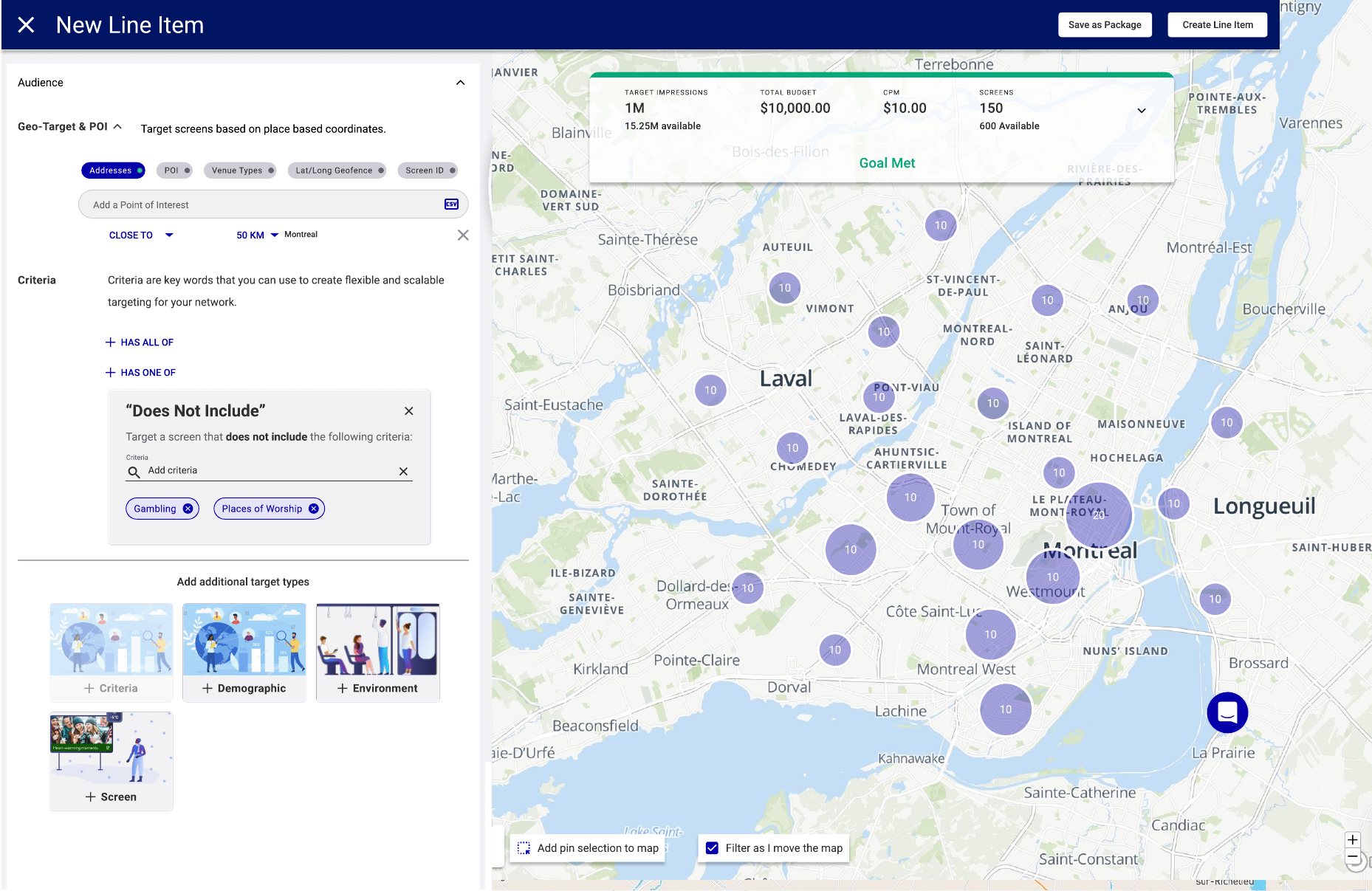
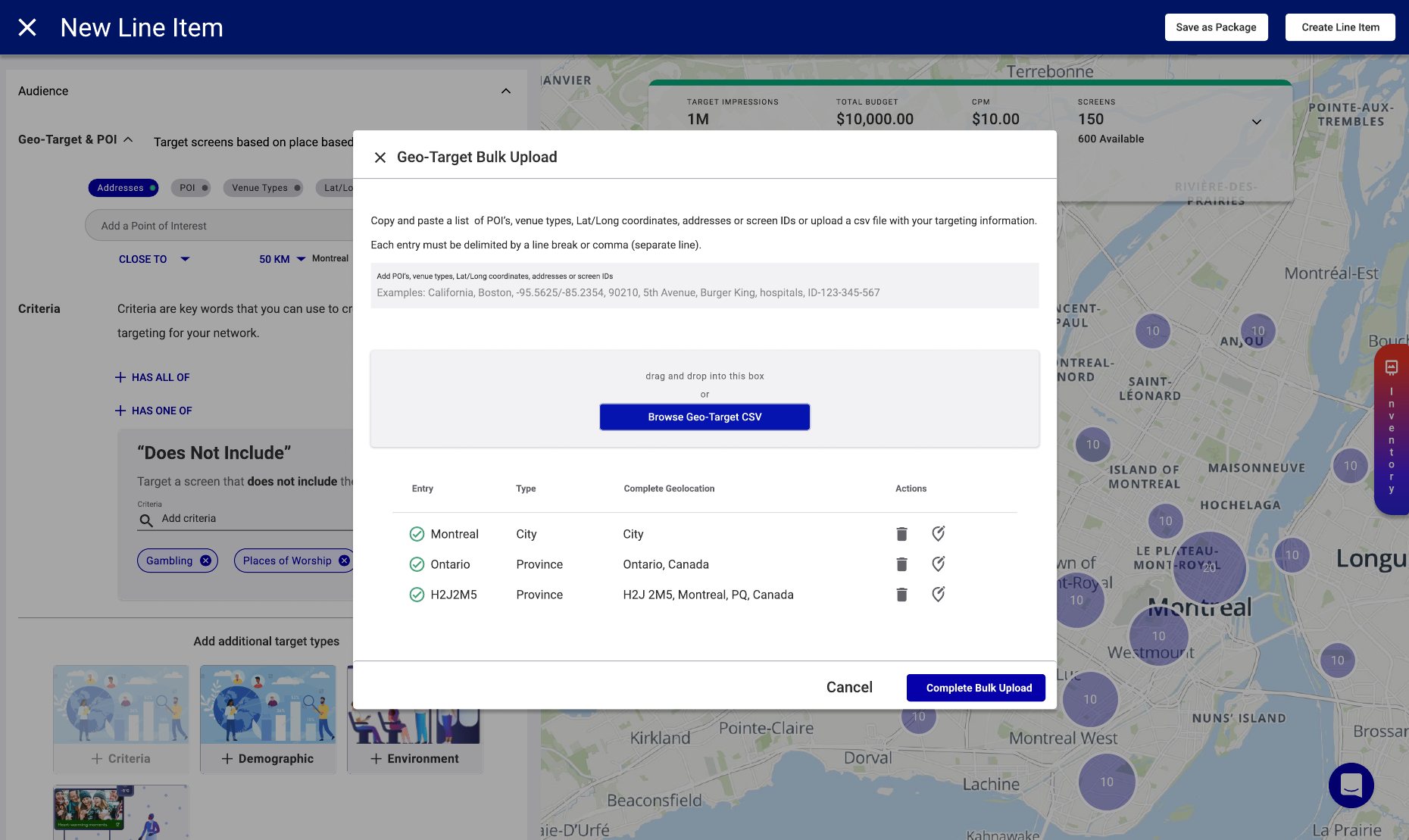
Customers had been asking for a specific and simple point of interest workflow. Geo-targets were designed to provide this. A buyer can add any of the following:
- Addresses
- Points of interest
- Venue types
- A lat/long geofence
- Screen IDs
The buyer then sets a distance (“close to”, or 50 km of Montréal) and sees the matching screens on the map.
The targets support the standard target types. Criteria are kept for legacy support and are written as plain sentences such as “has all of”, “has one of” and “does not include”. Users can customize the target layout to fit their own needs by adding target types (criteria, demographic, environment and screen).
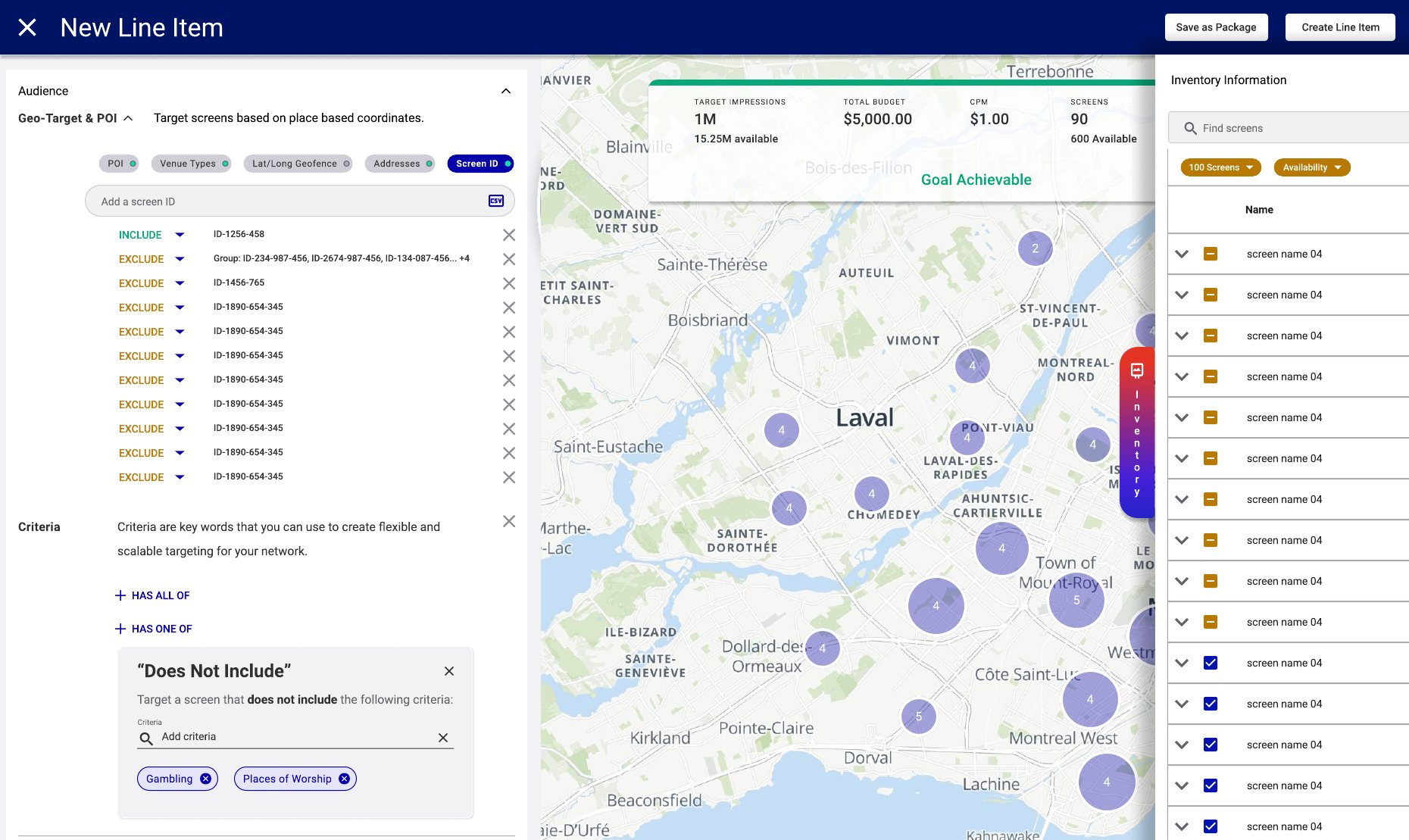
Screen IDs can be included or excluded individually or as a group. In addition targets can be bulk uploaded from a CSV file through the icon in the geo-target search bar.
Inventory Drawer
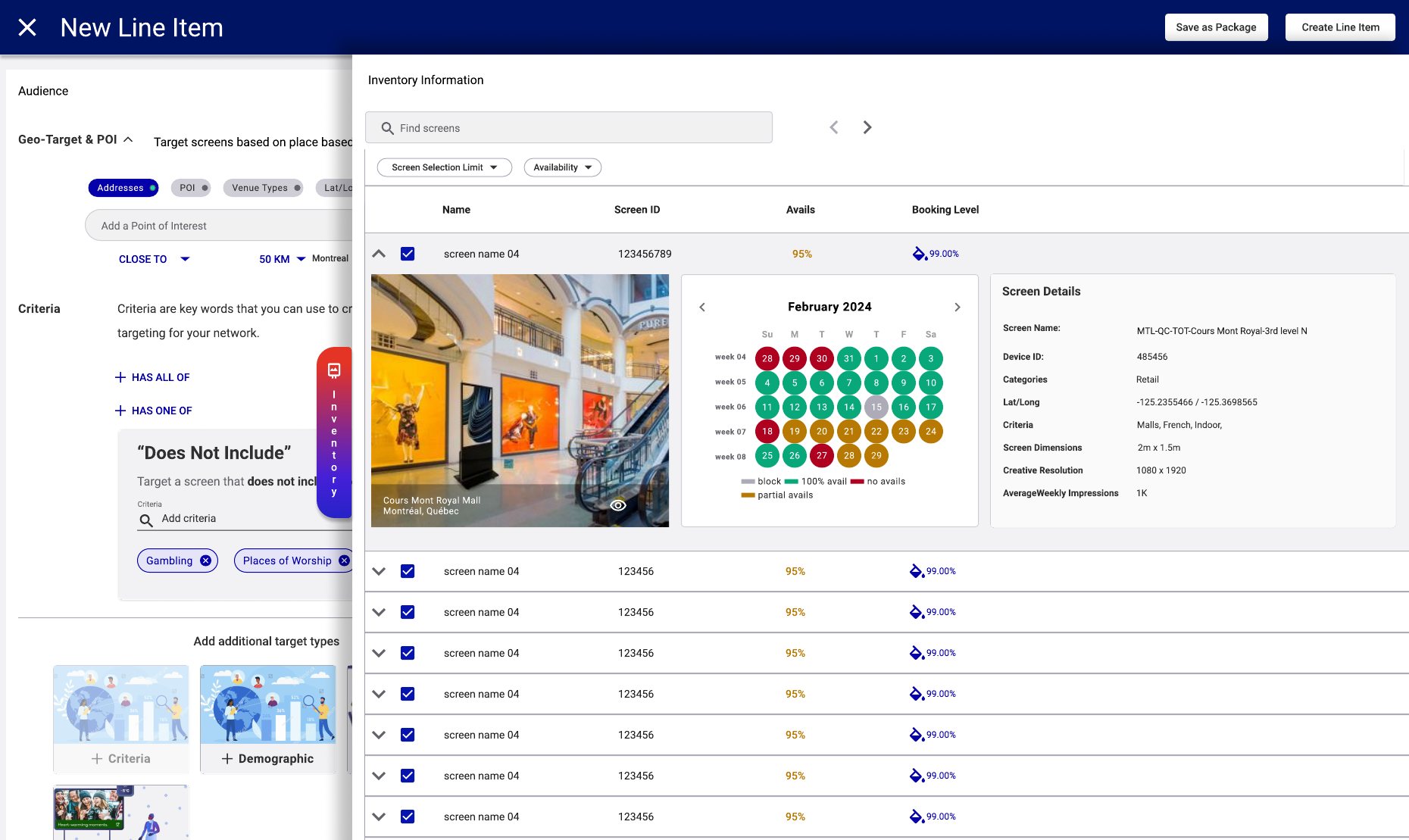
The inventory panel provides granular selection and information on every screen. I chose to place it in a drawer, which keeps the inventory list from cluttering the interface and gives the screen a more streamlined look.
The drawer is not a modal. Every other line item parameter can still be adjusted while it is open.
Each screen opens to a photo of its venue, an availability calendar and its details (device, categories, coordinates, criteria, dimensions, creative resolution and average weekly impressions).
Search returns any valid piece of inventory, whether it is targeted, excluded or not targeted, and works on any metadata attached to a screen. It acts as a temporary filter and does not change the selection unless the user adds the result to it.
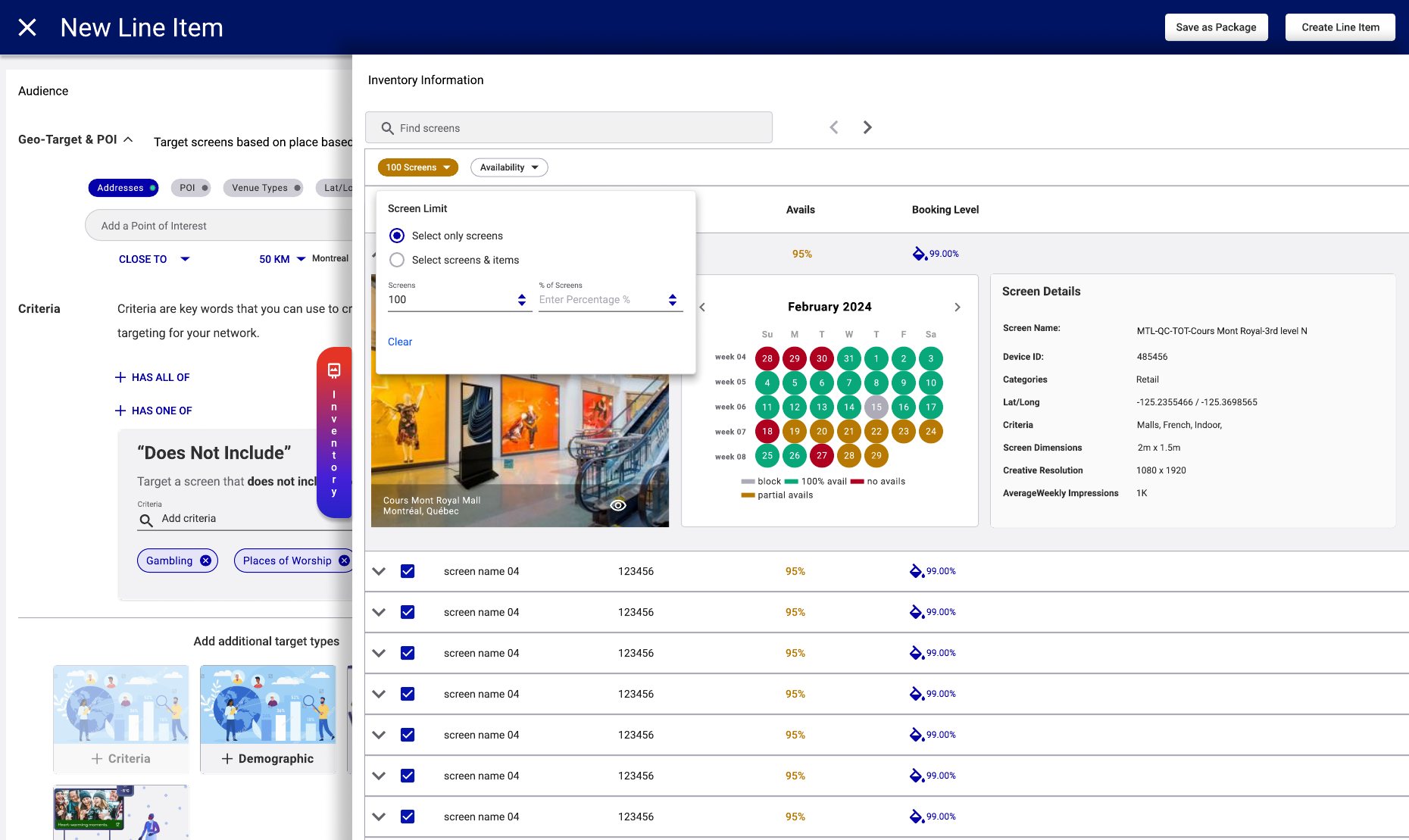
Screen targets can be limited by a number or a percentage of the total, and filtered by availability level. Users can also exclude or cherry-pick individual screens. Target filters turn amber when active, to distinguish them from the platform's regular filters.
A switch in the main bar toggles the inventory between map and list. The list view gives more space for additional columns.
Scheduling
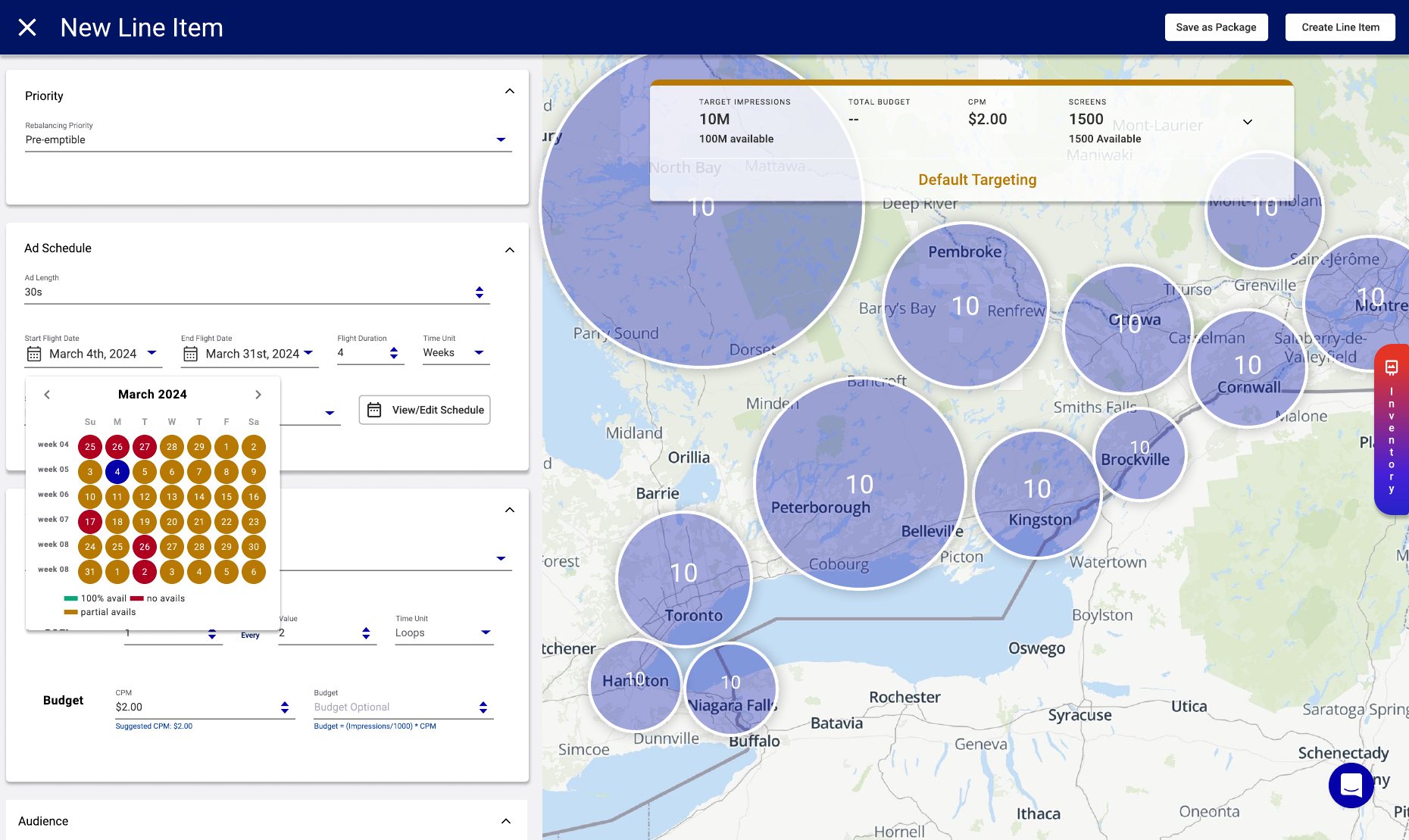
Flights default to a 4 week date range. The date picker shows the avails (available inventory) for what is currently targeted, so a buyer sees availability while picking dates.
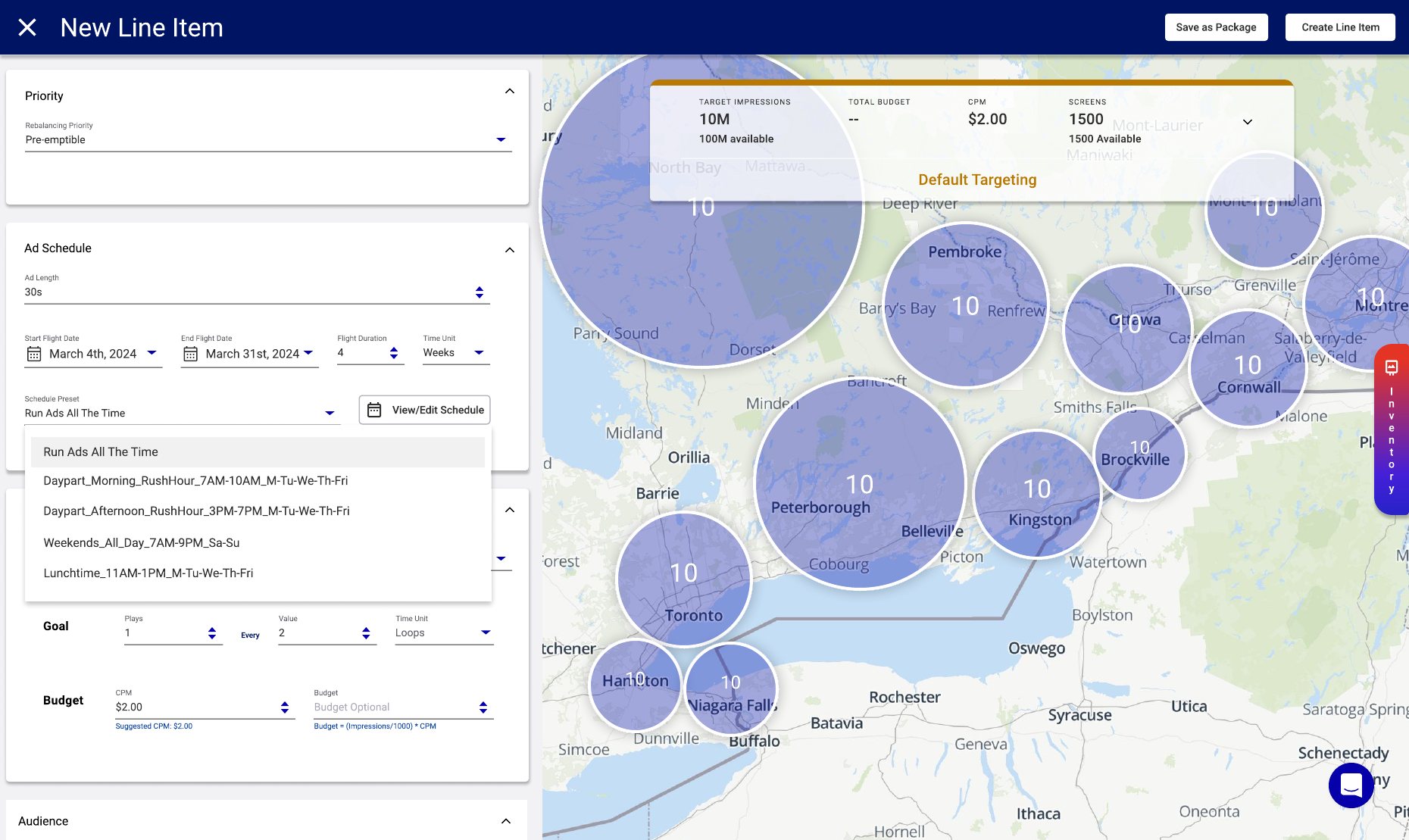
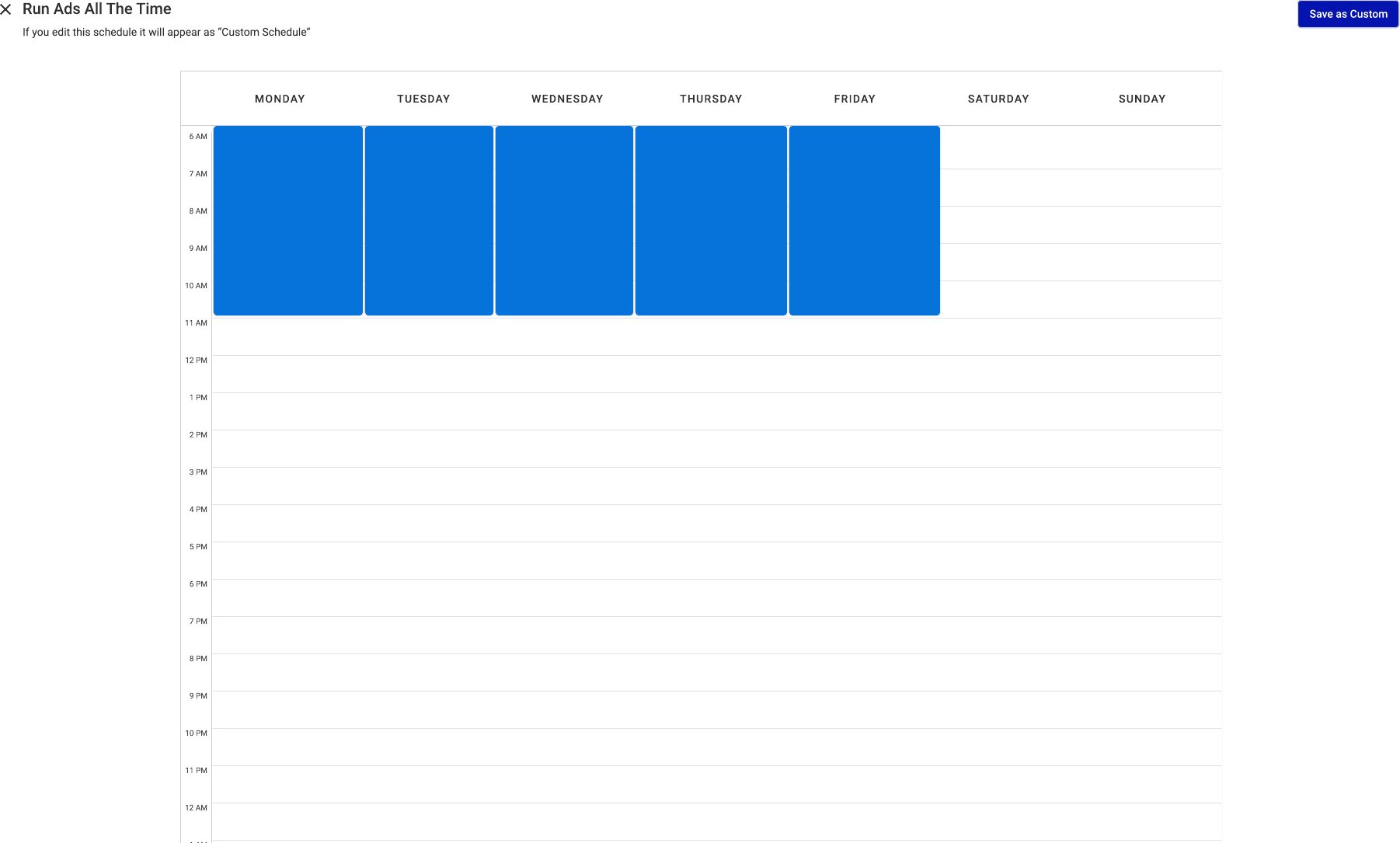
A line item can use a preset schedule defined in the platform, such as a weekday morning rush hour daypart. Advanced scheduling gives more flexibility for fragmented dayparts. The “View/Edit Schedule” button opens a weekly calendar, and as soon as the user makes a change “Save as Custom” is activated. Custom schedules are only saved with the campaign.
Goal and Packages
The goal parameters update with the type of buy. For an impression goal, the buyer can compute the budget from the impressions or the impressions from a budget limit, and set the pacing. Priority levels come from the guaranteed settings, from takeover down to pre-emptible.
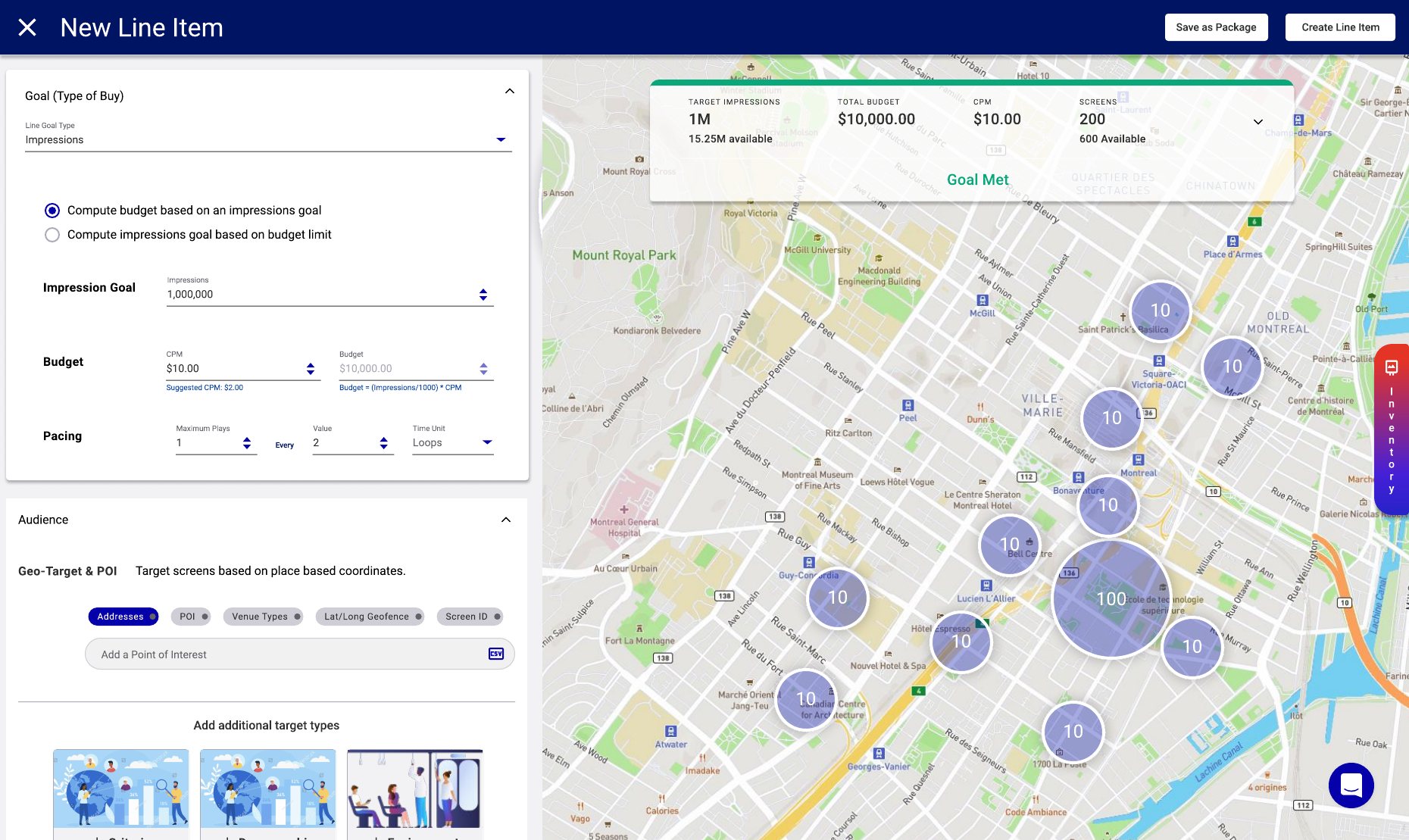
The campaign owner chooses whether to use a package. The package workflow supports all types of buys, and a package keeps all of the line item settings in their saved state. This makes campaign planning simpler and more predictable for media owners, as they sell the same kinds of buys repeatedly.
Outcome
This was a concept and was not shipped as a new product. Instead its ideas were integrated into the existing system.
A concept shows the team and the customers where the product can go, and the parts that make sense are built into what is already there.